How to Create and Deploy a USDC Strategy with a Yield Splitter
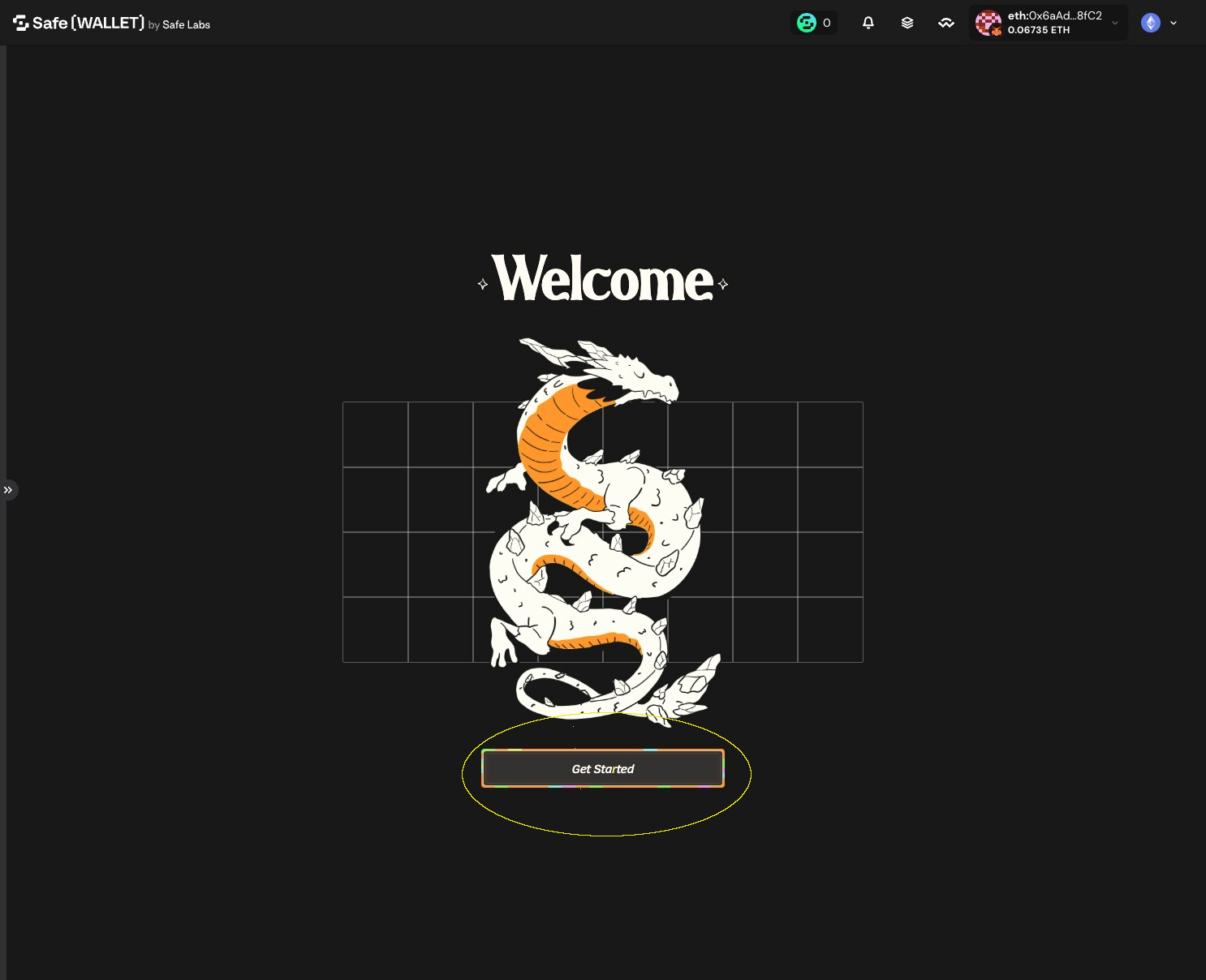
1. Navigate to Octant Safe app and click "Get Started"
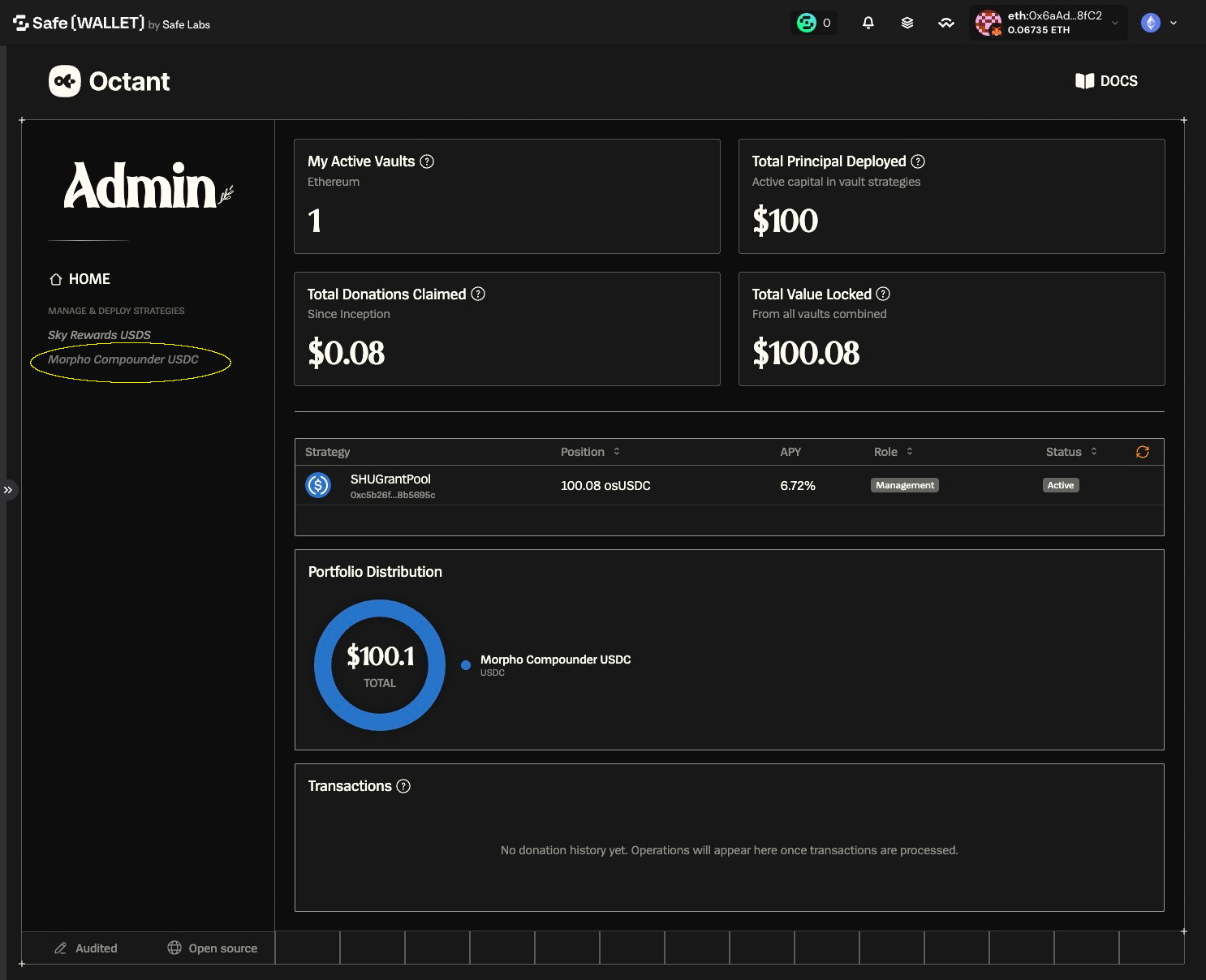
2. Click "Morpho Compounder USDC"
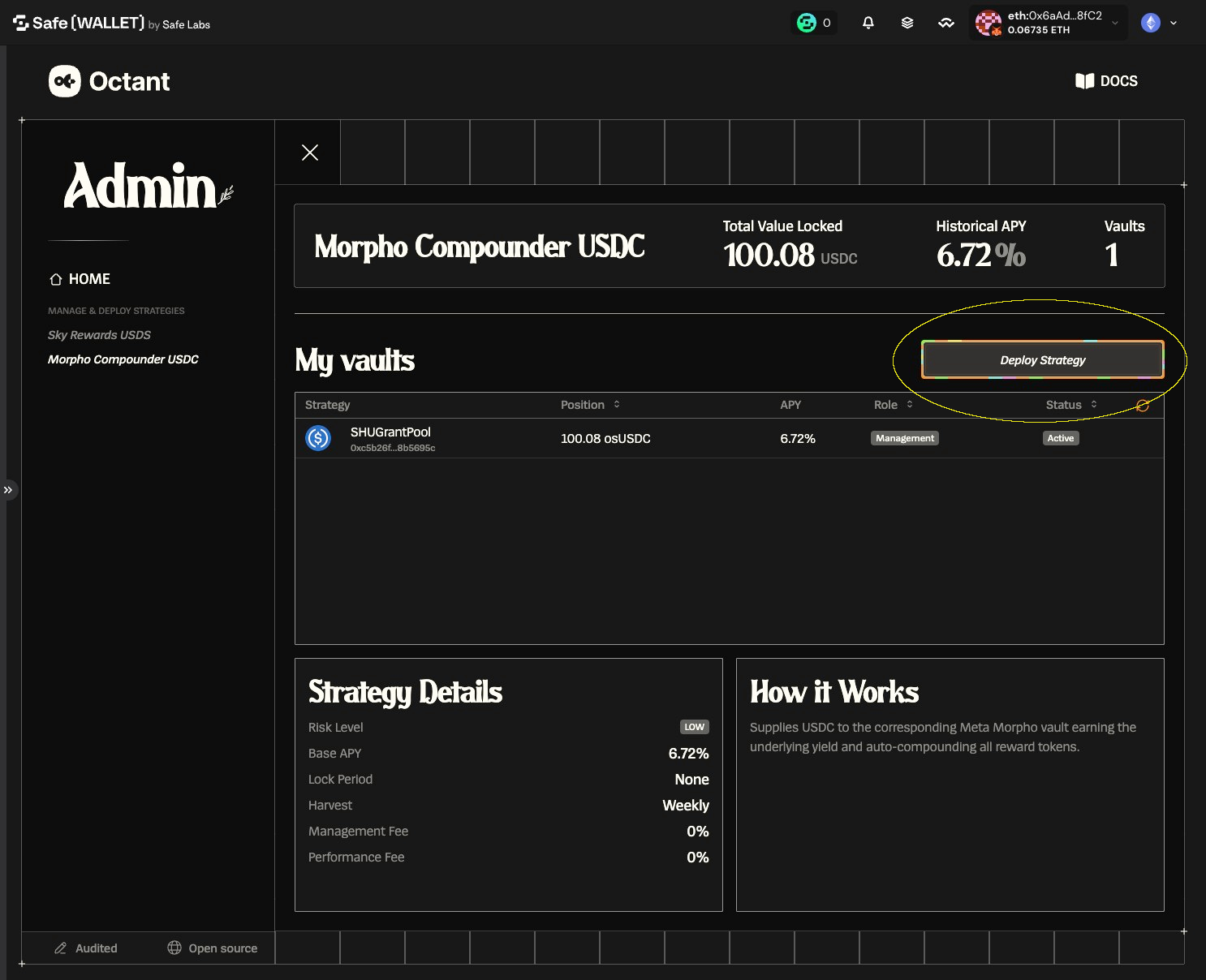
3. Click "Deploy Strategy"
4. In "Strategy Name", enter a label for this deployment (for your reference)
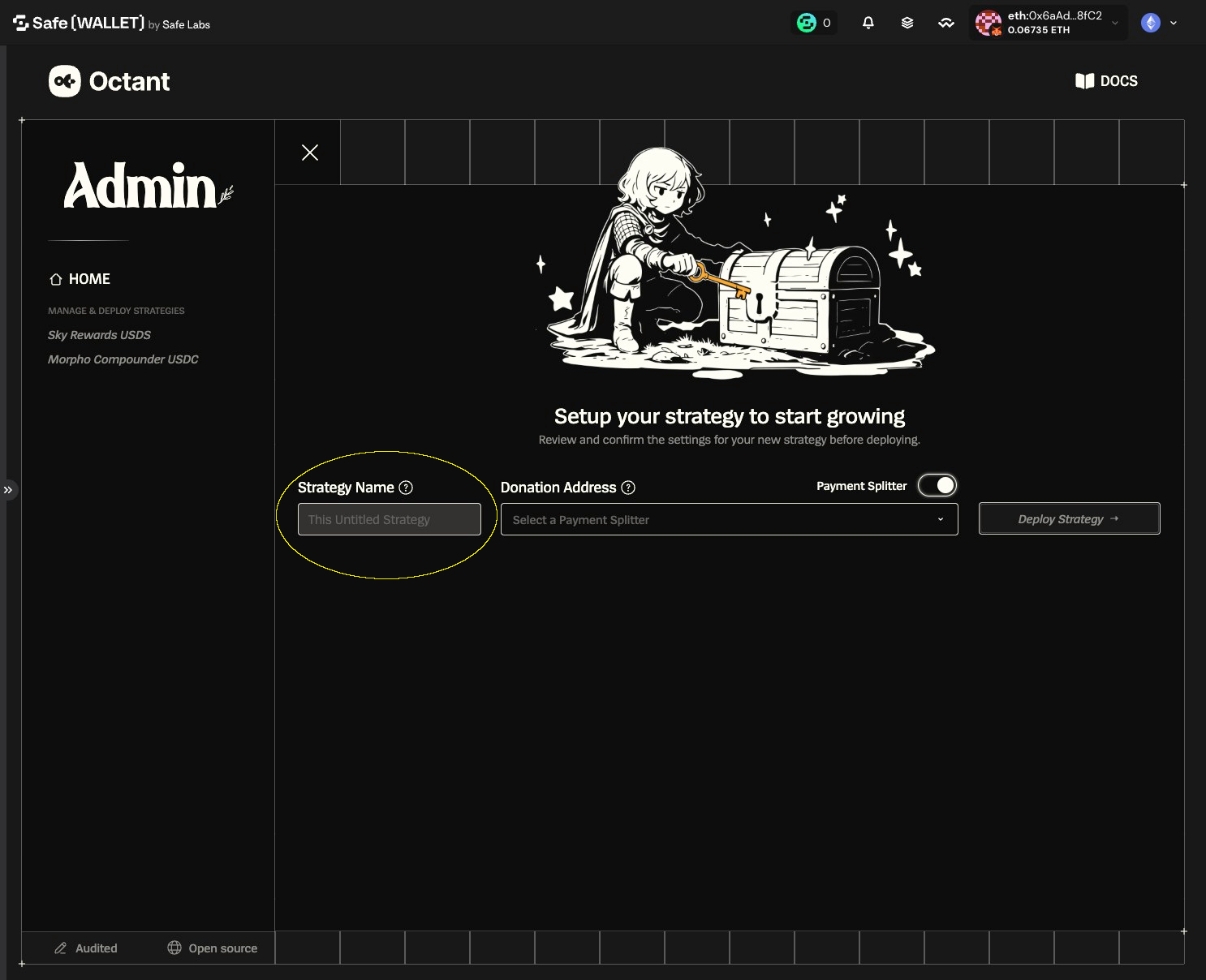
5. Click Drop down arrow to define where the strategy's yield is sent
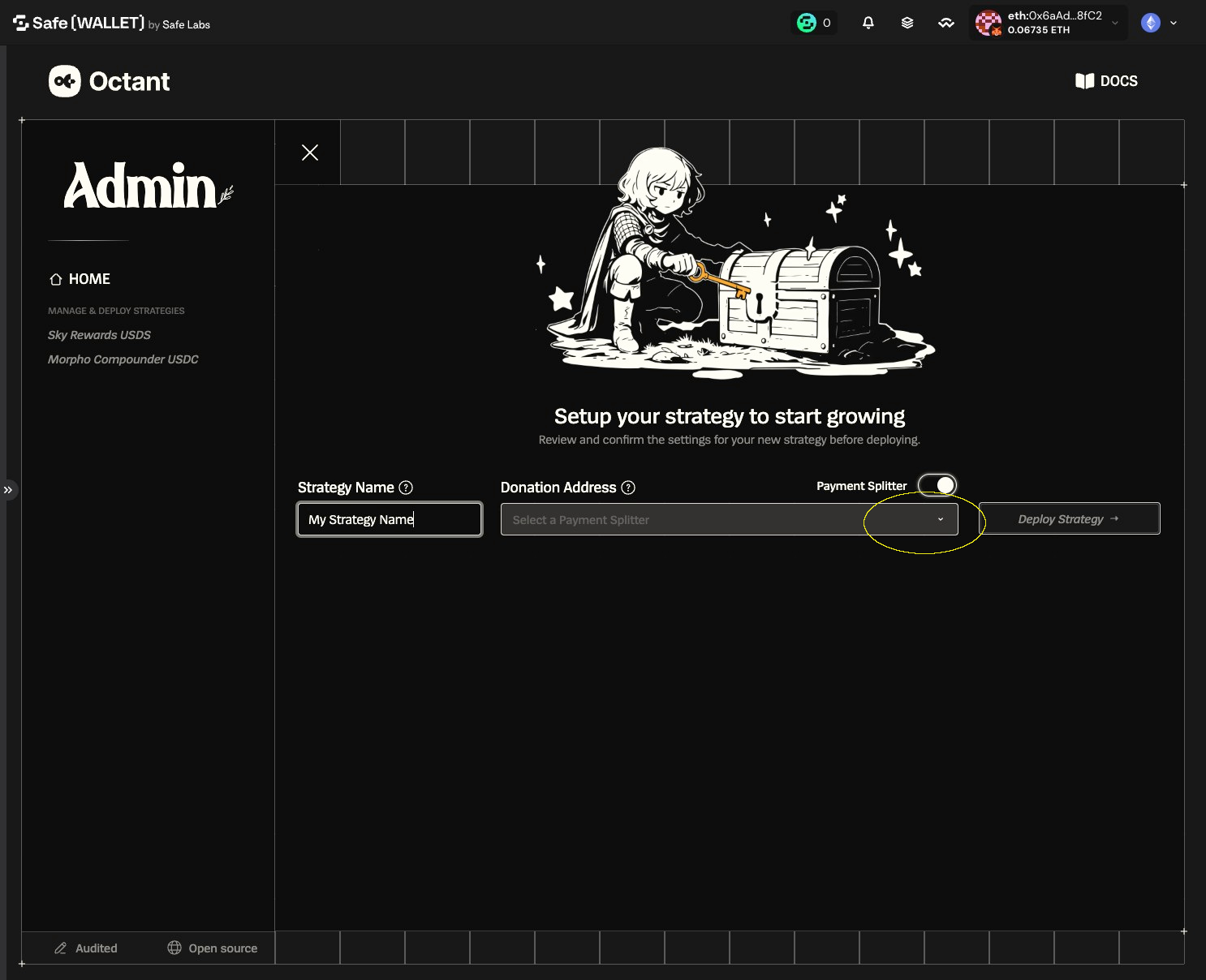
6. Choose "New Payment Splitter" to create a new yield split
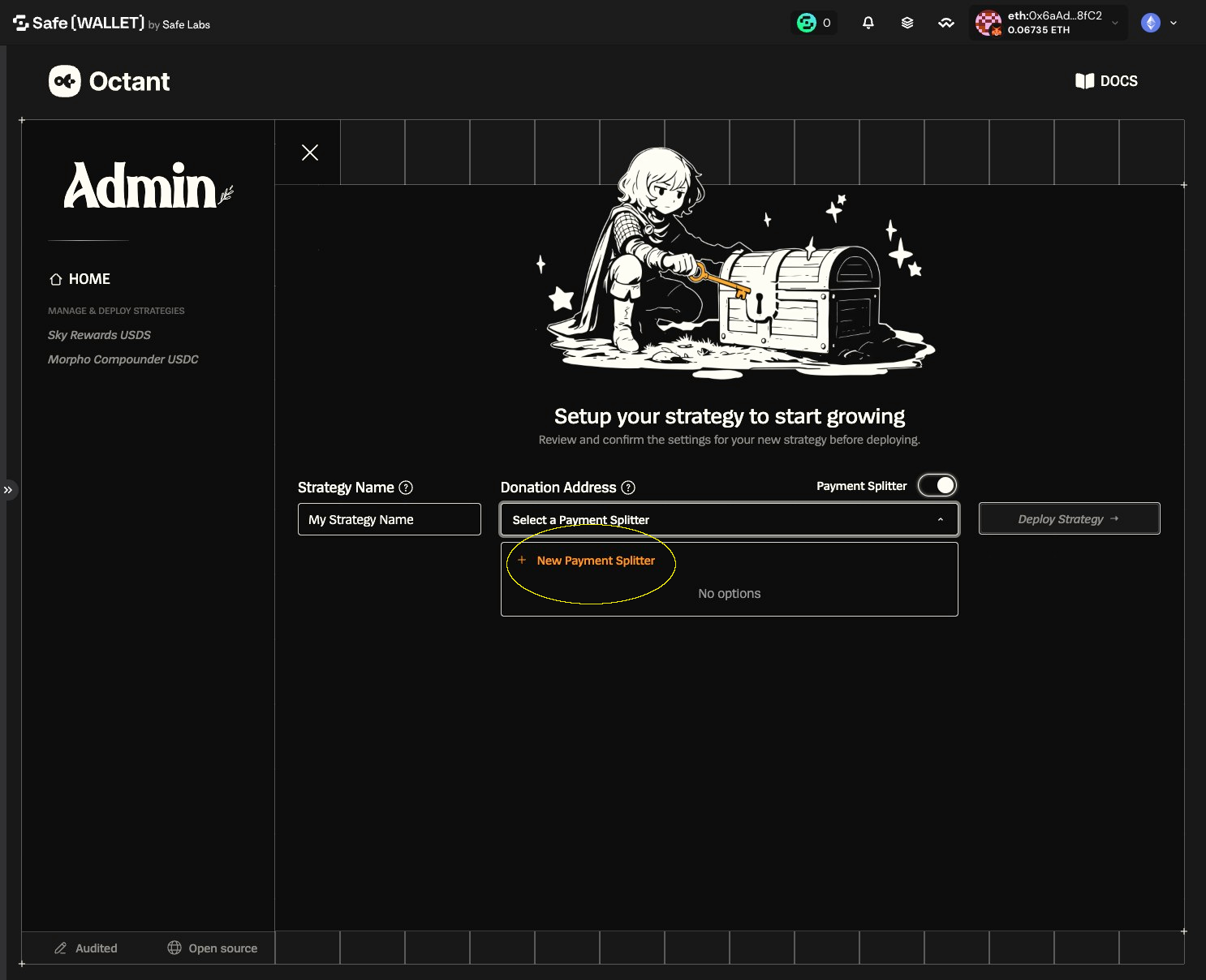
7. Enter a label for the first recipient (e.g., Ops Safe, Core Devs, etc.)
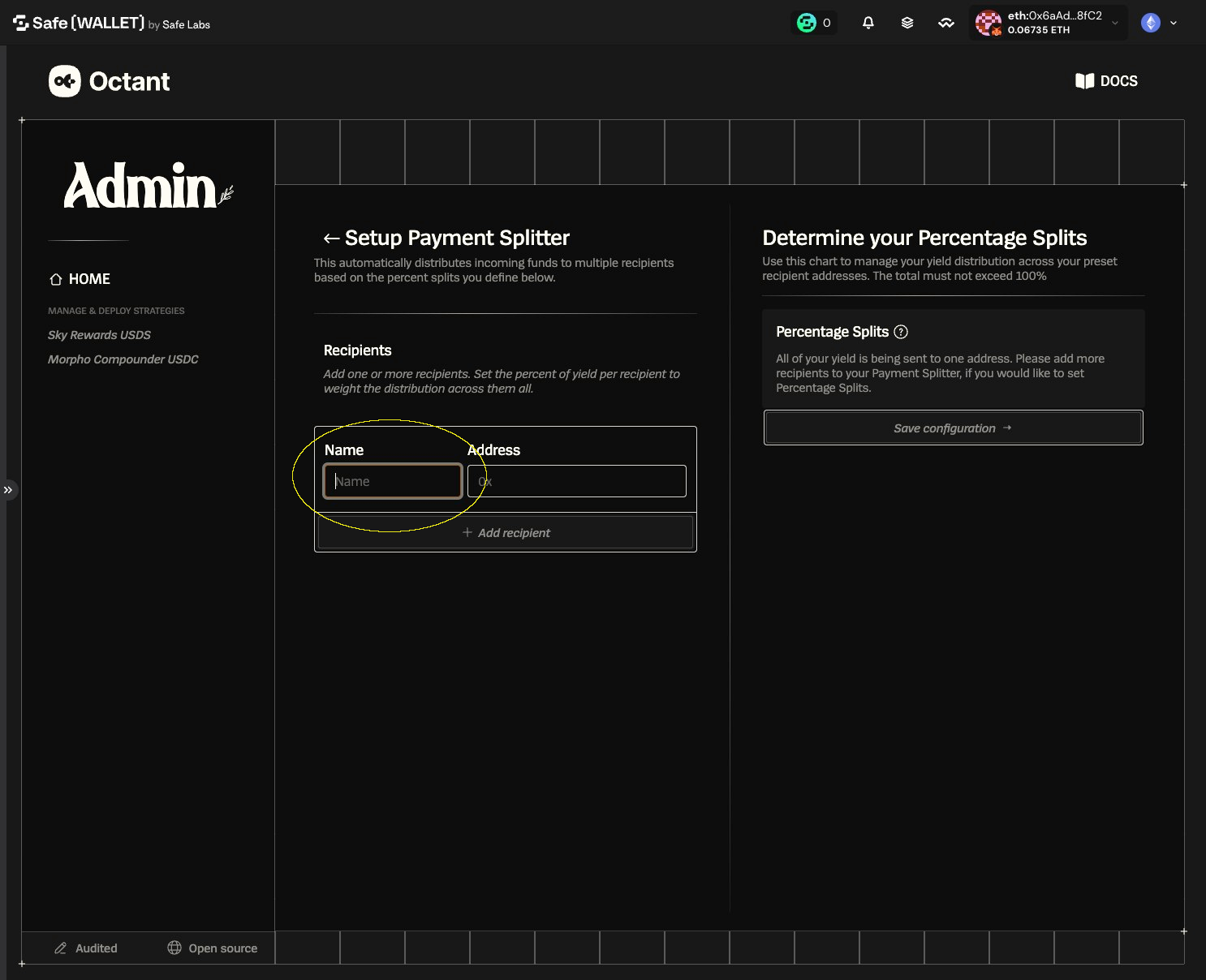
8. Paste the recipient wallet, Safe, or contract address
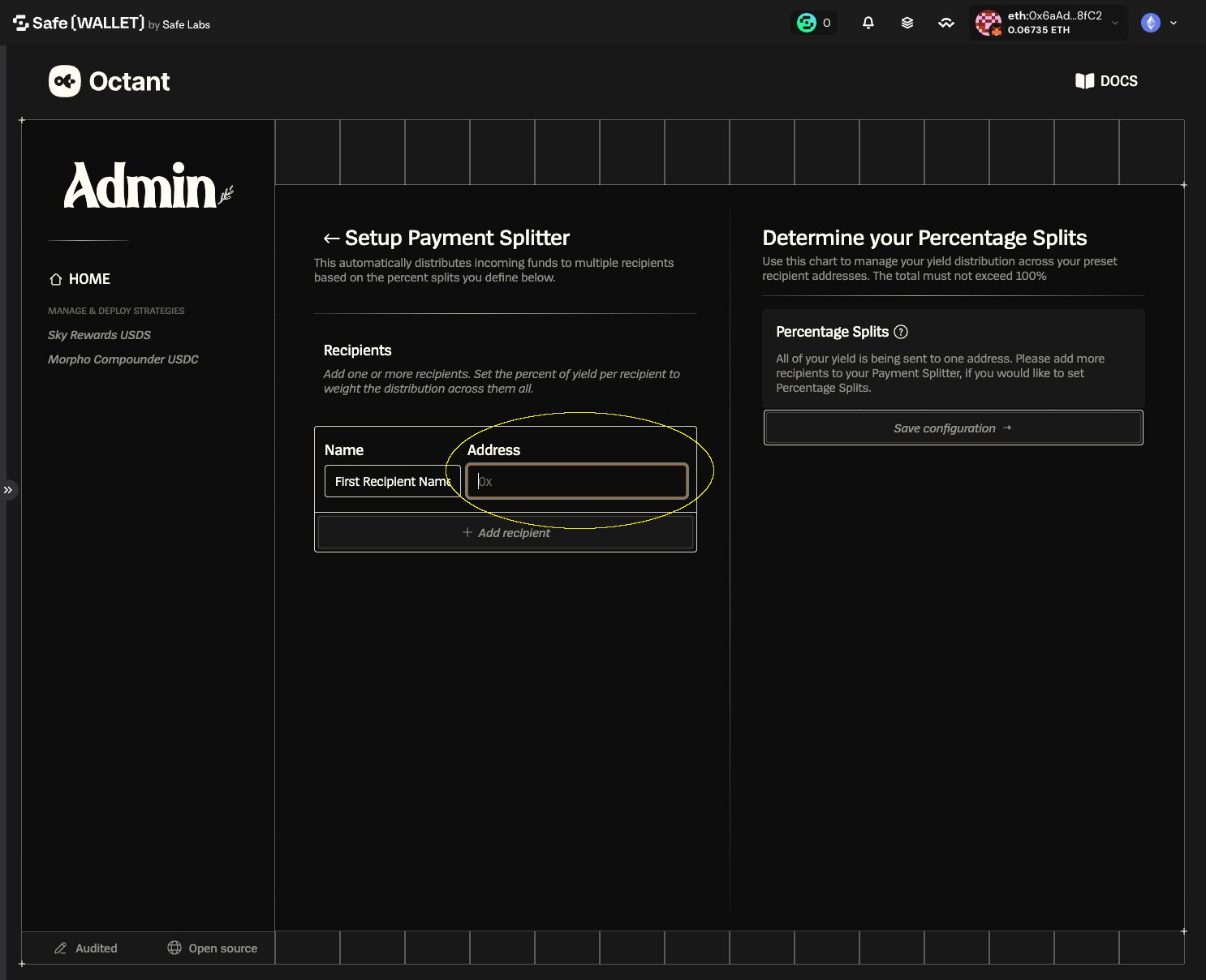
9. Click "Add recipient" to add another recipient
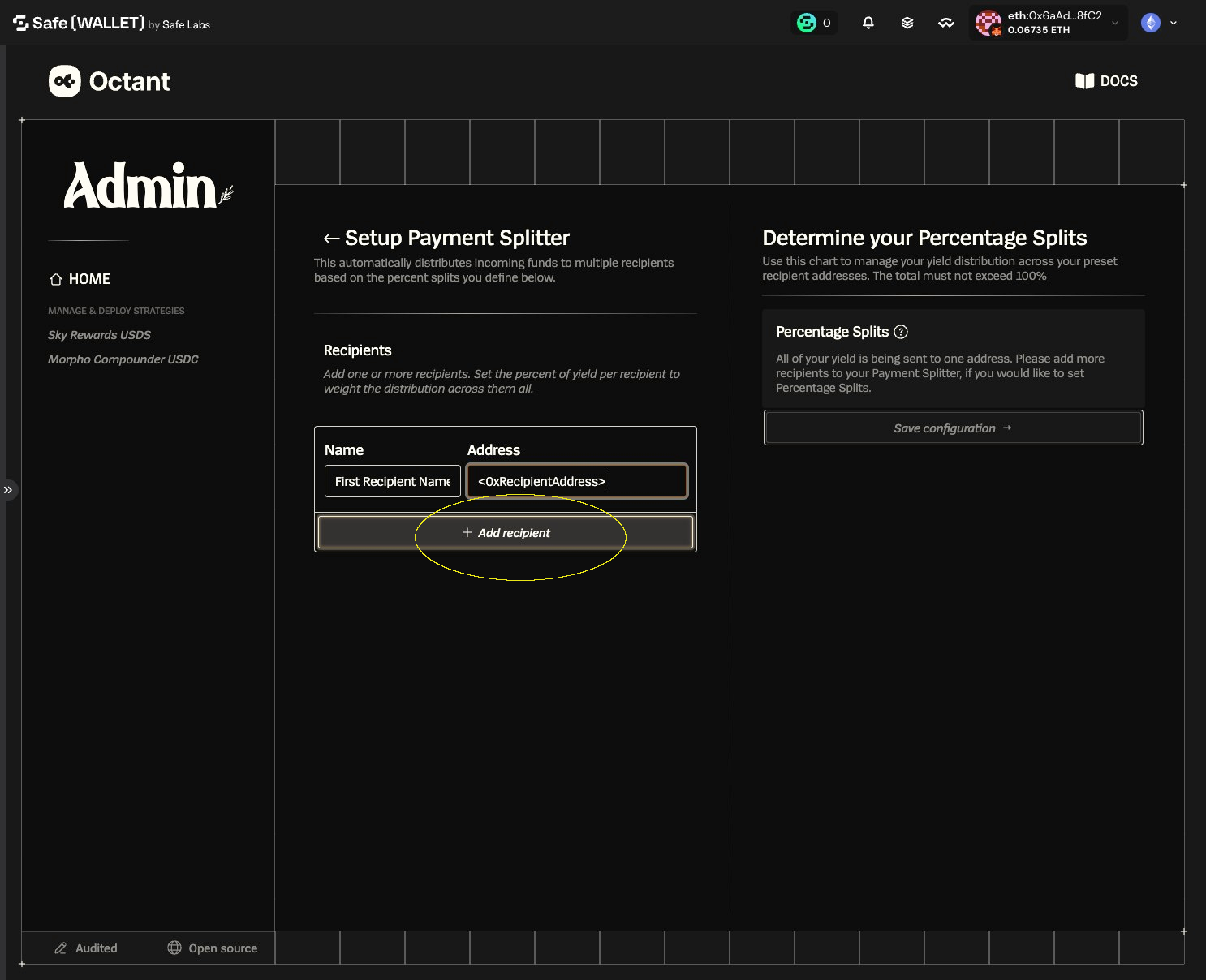
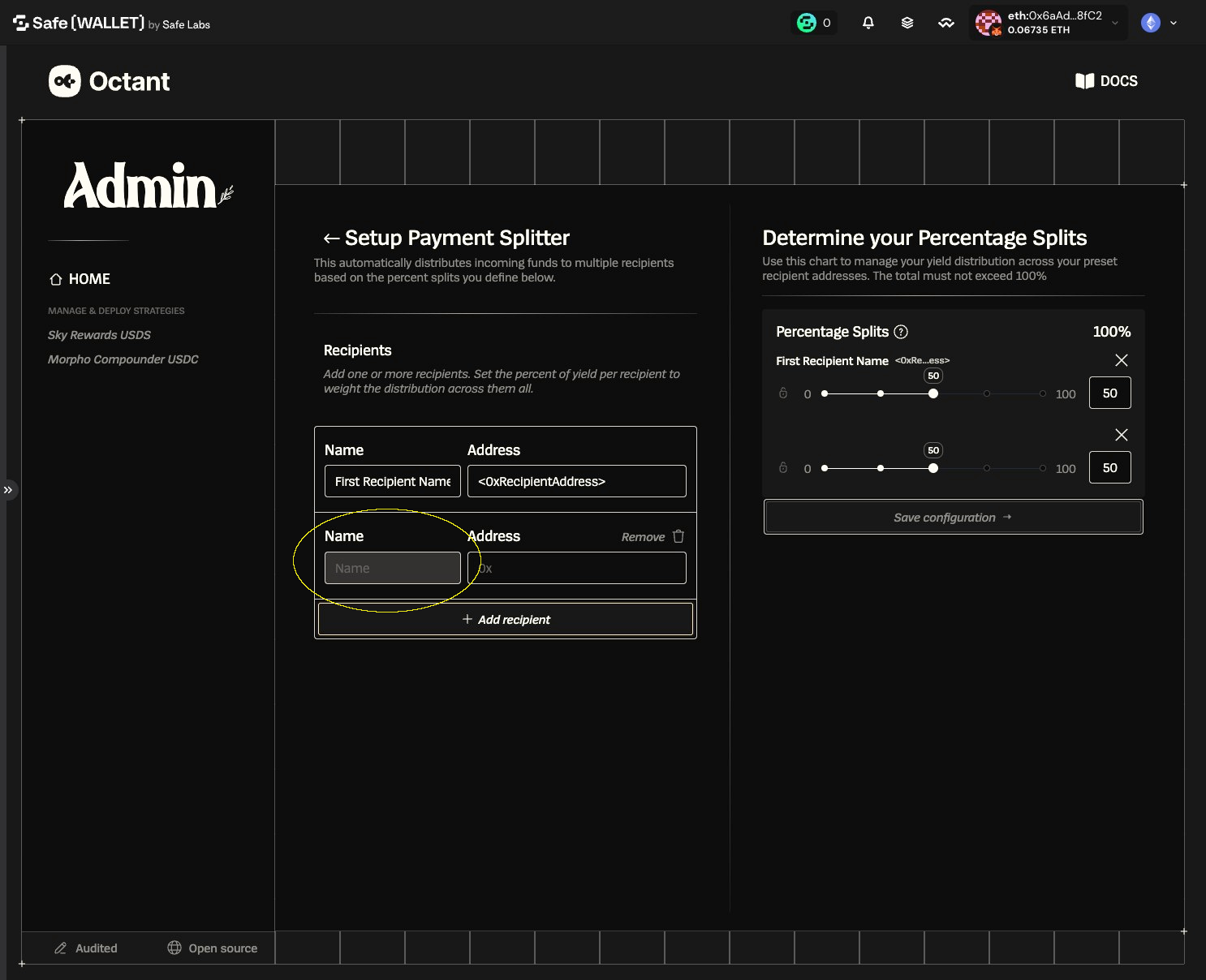
10. Enter a label for the second recipient (e.g., Ops Safe, Core Devs, etc.)
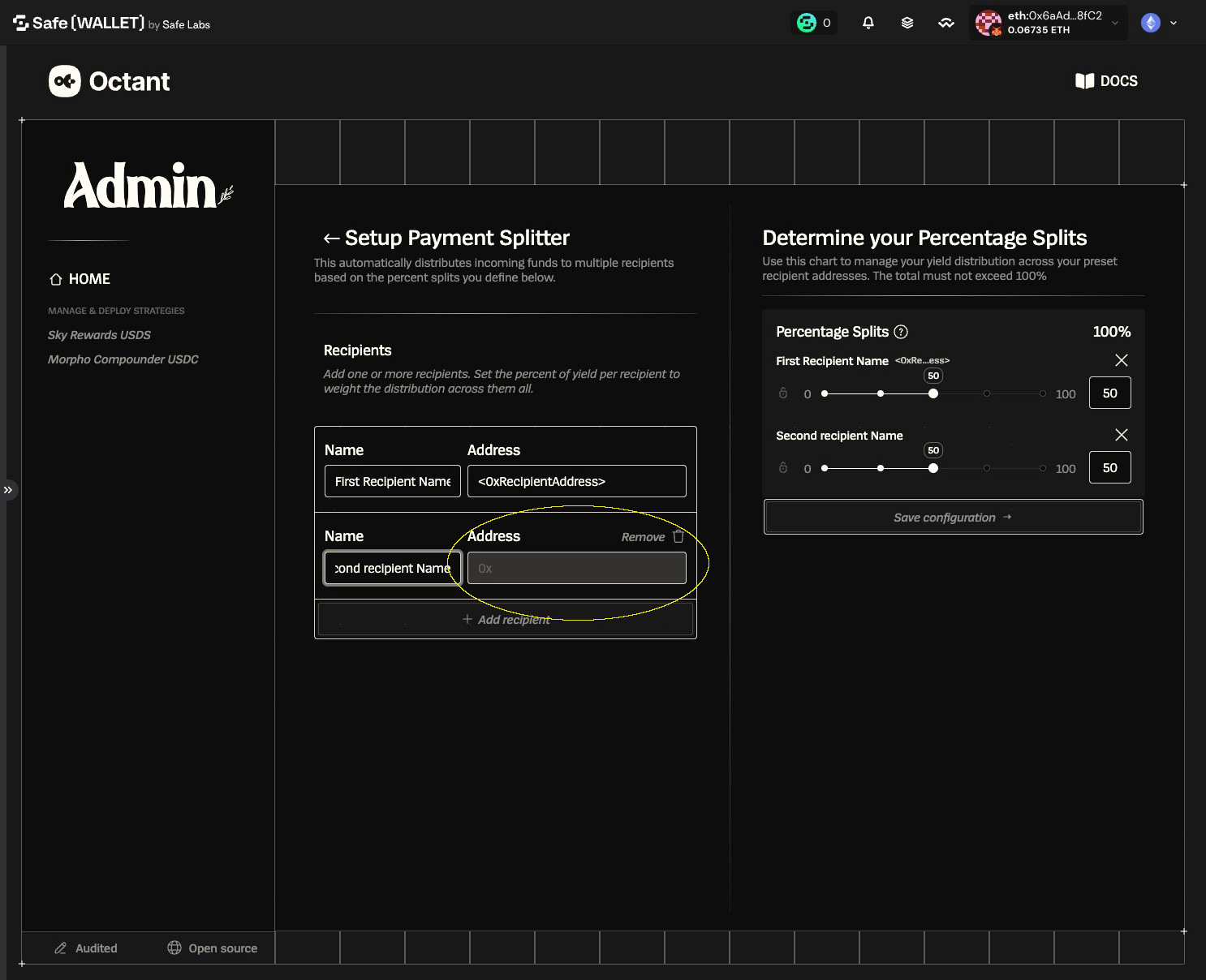
11. Paste the recipient wallet, Safe, or contract address
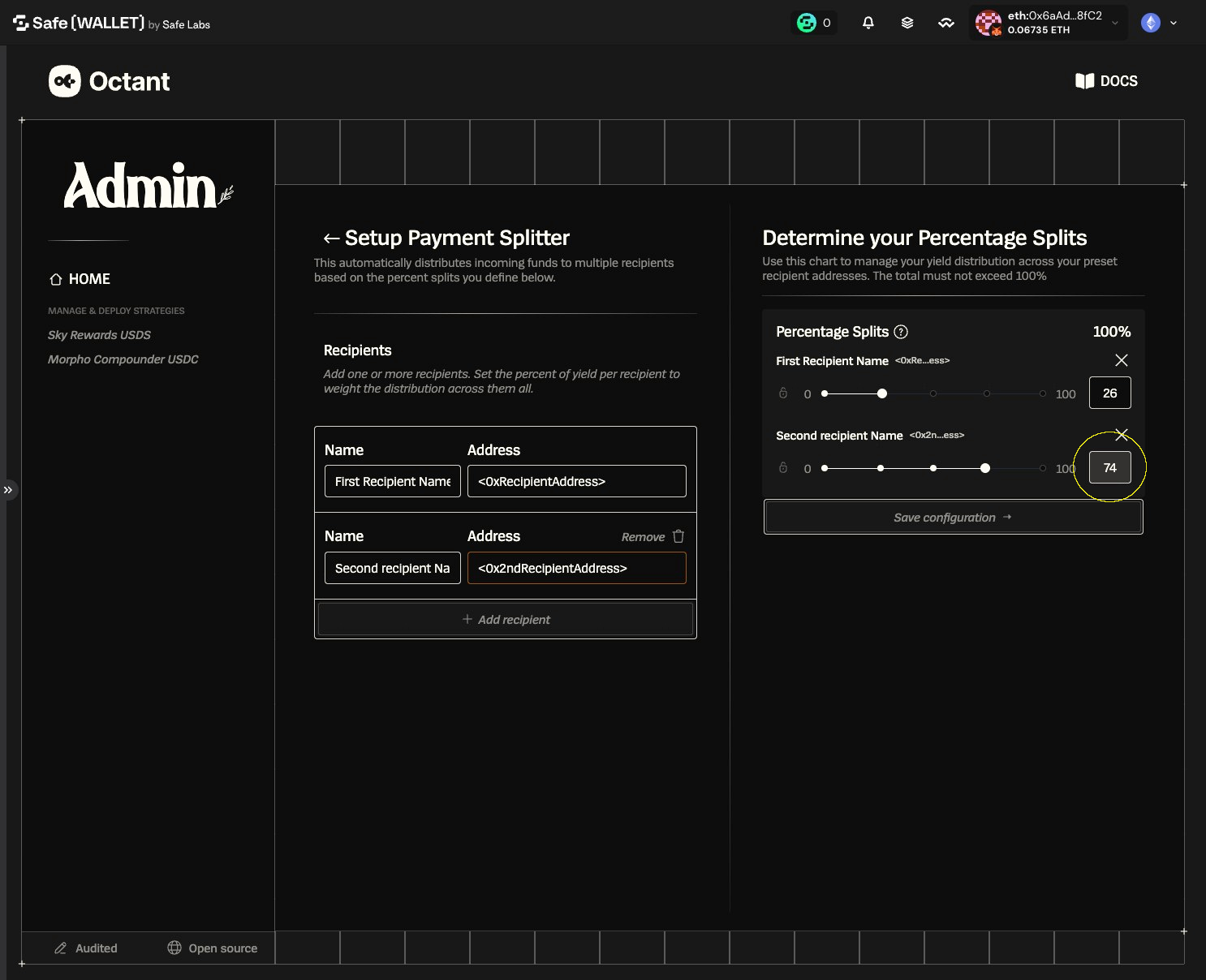
12. Click this range field to set the percentage split...
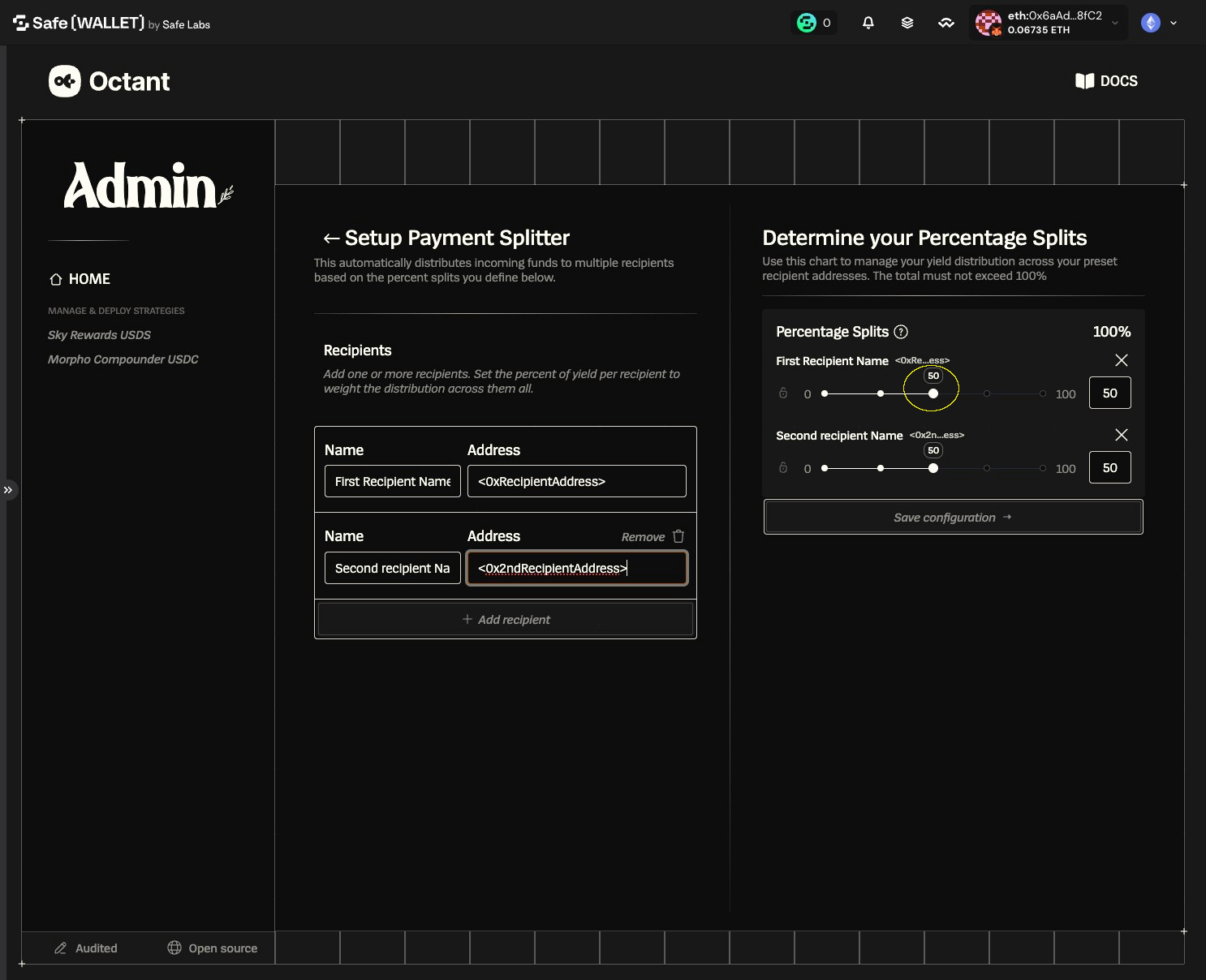
13. or type the percentage directly in the value field
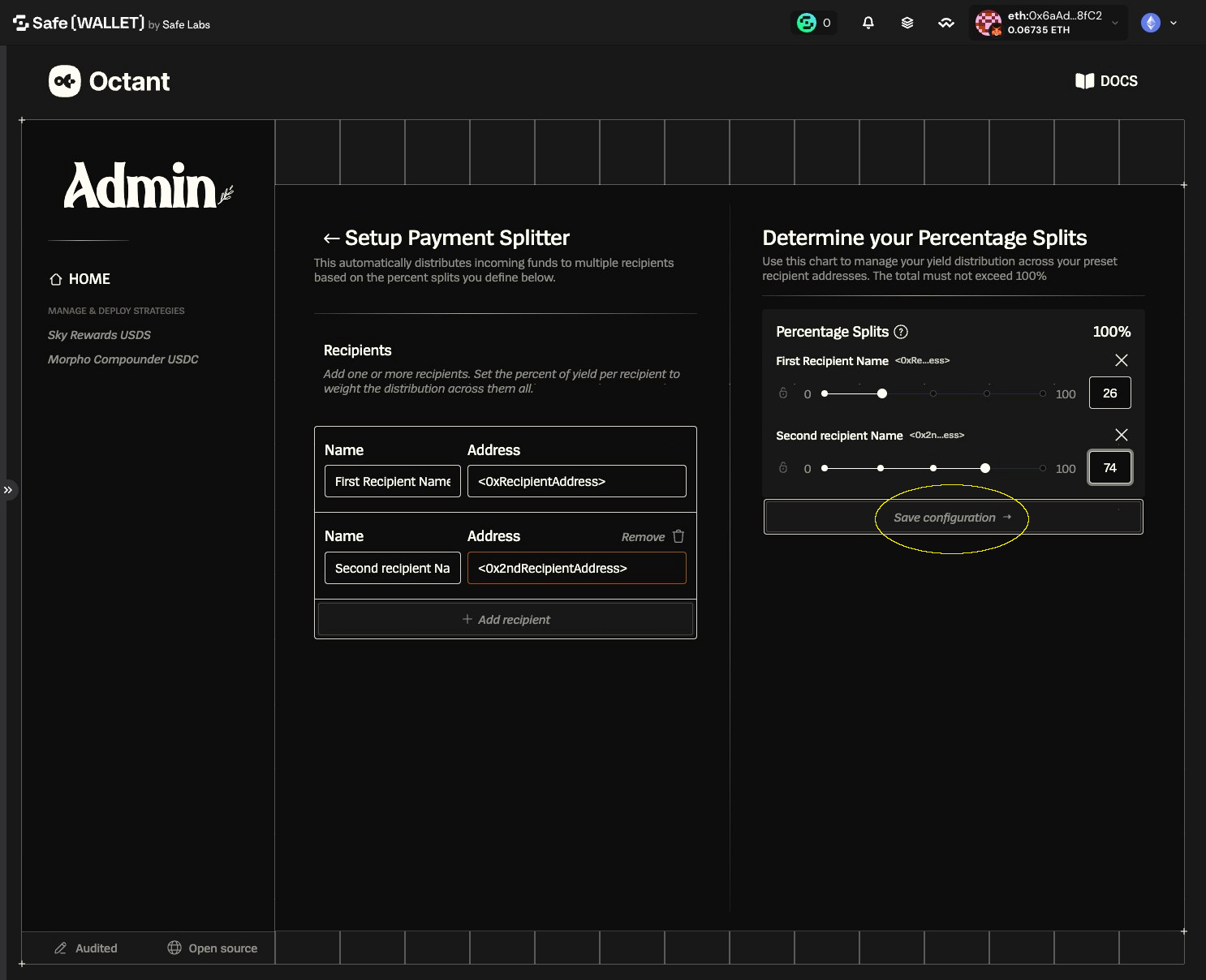
14. Click "Save configuration"
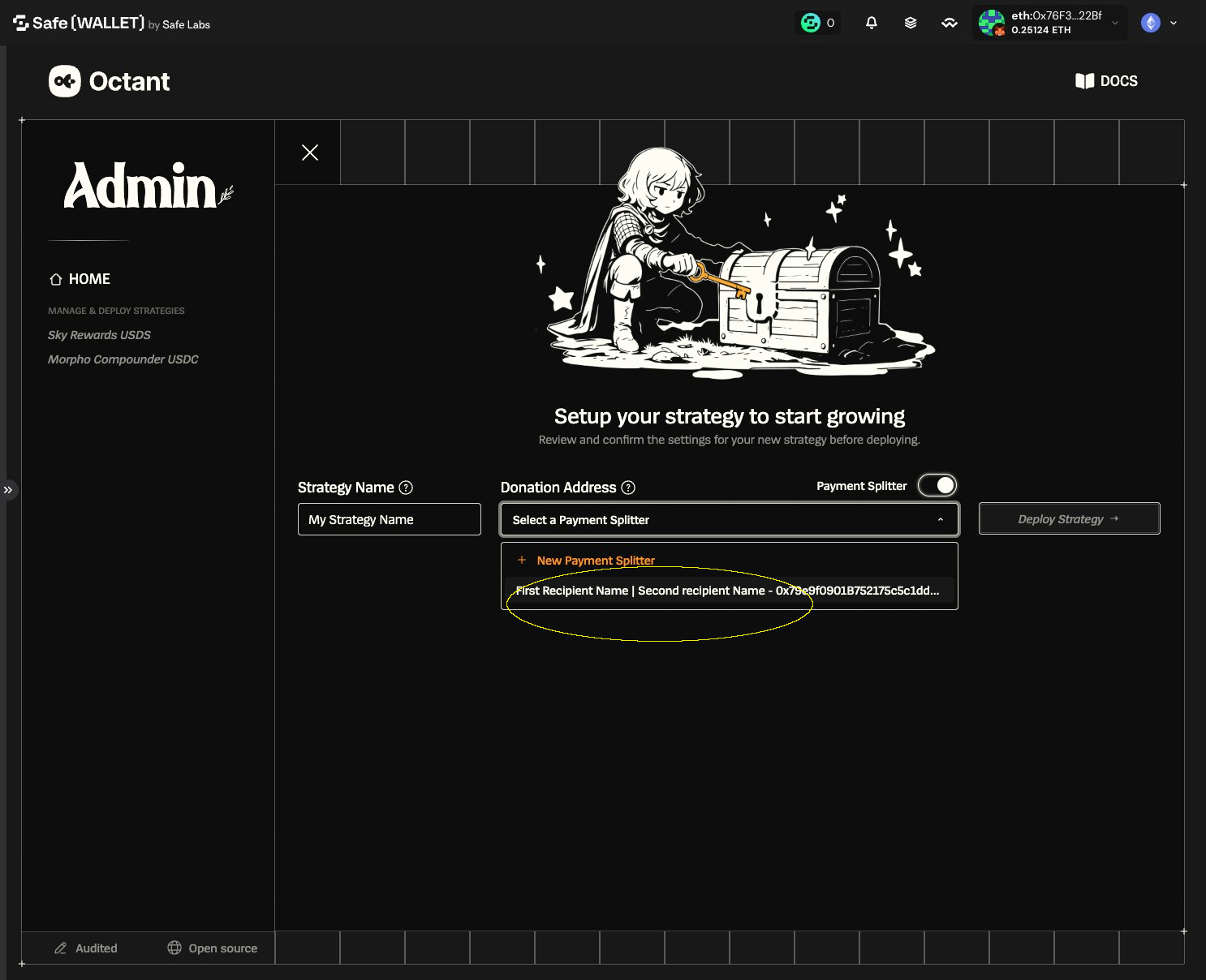
16. Click "Deploy Strategy"
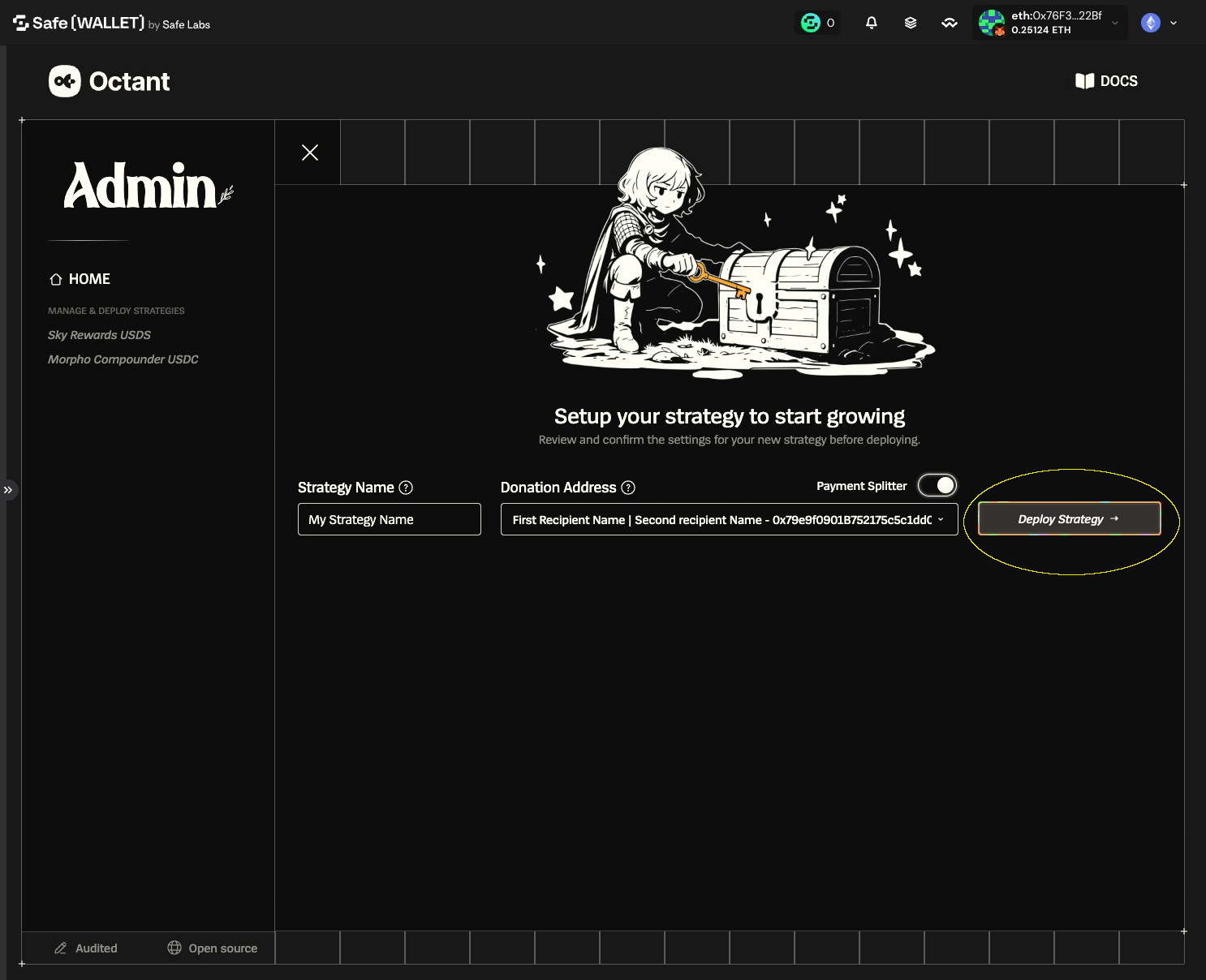
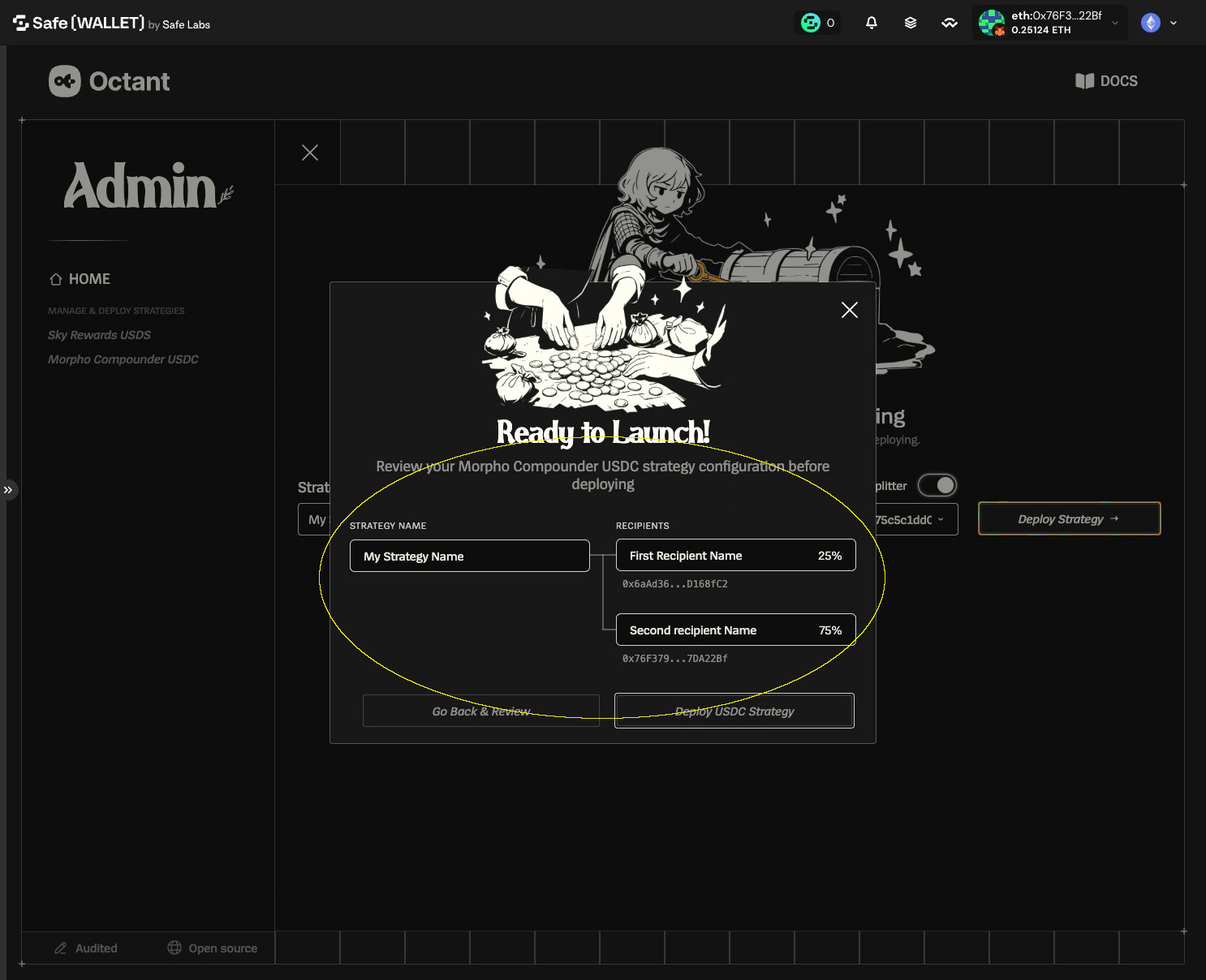
17. Check your configuration
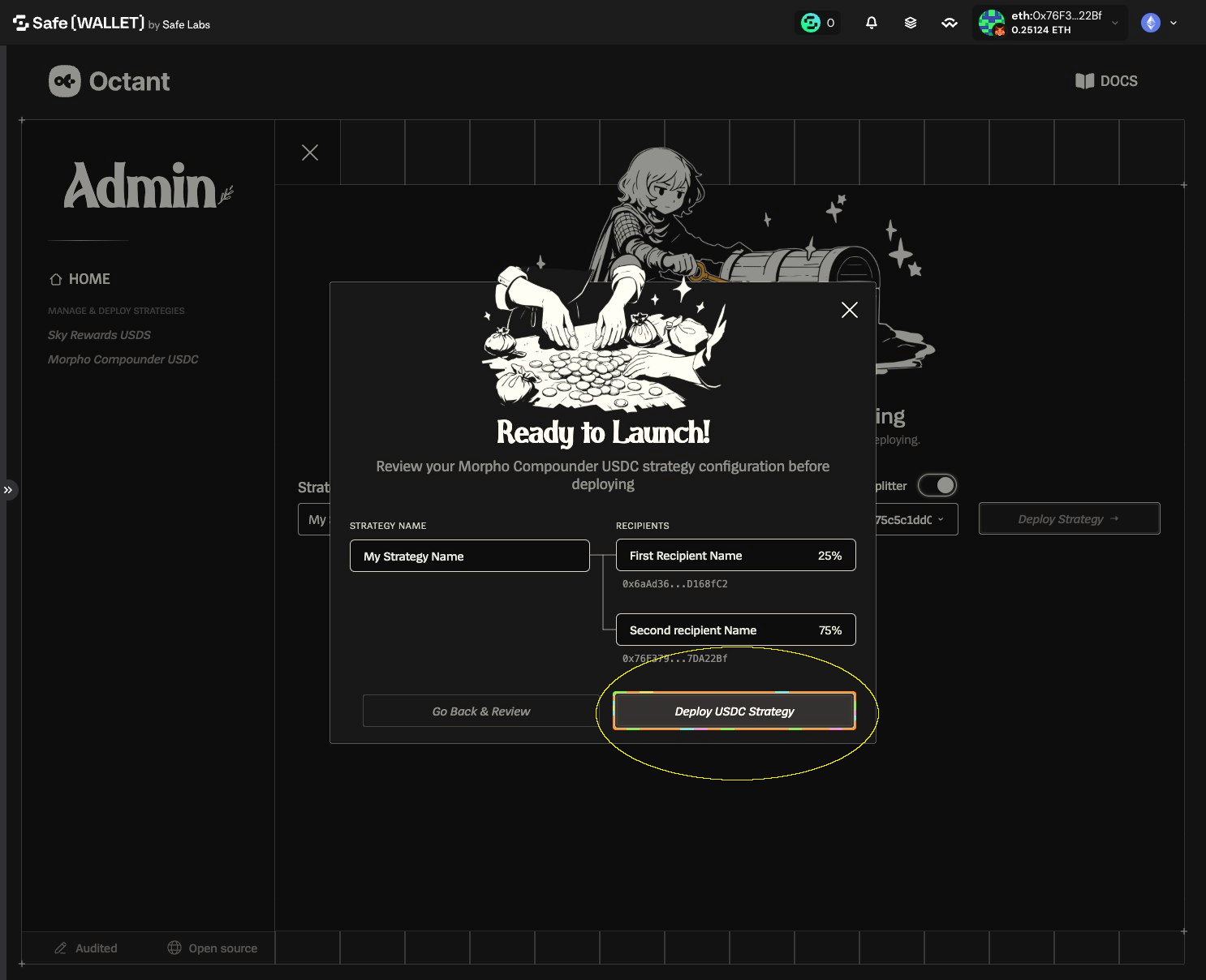
18. Click "Deploy USDC Strategy"
19. You can verify the first transaction data in your Safe
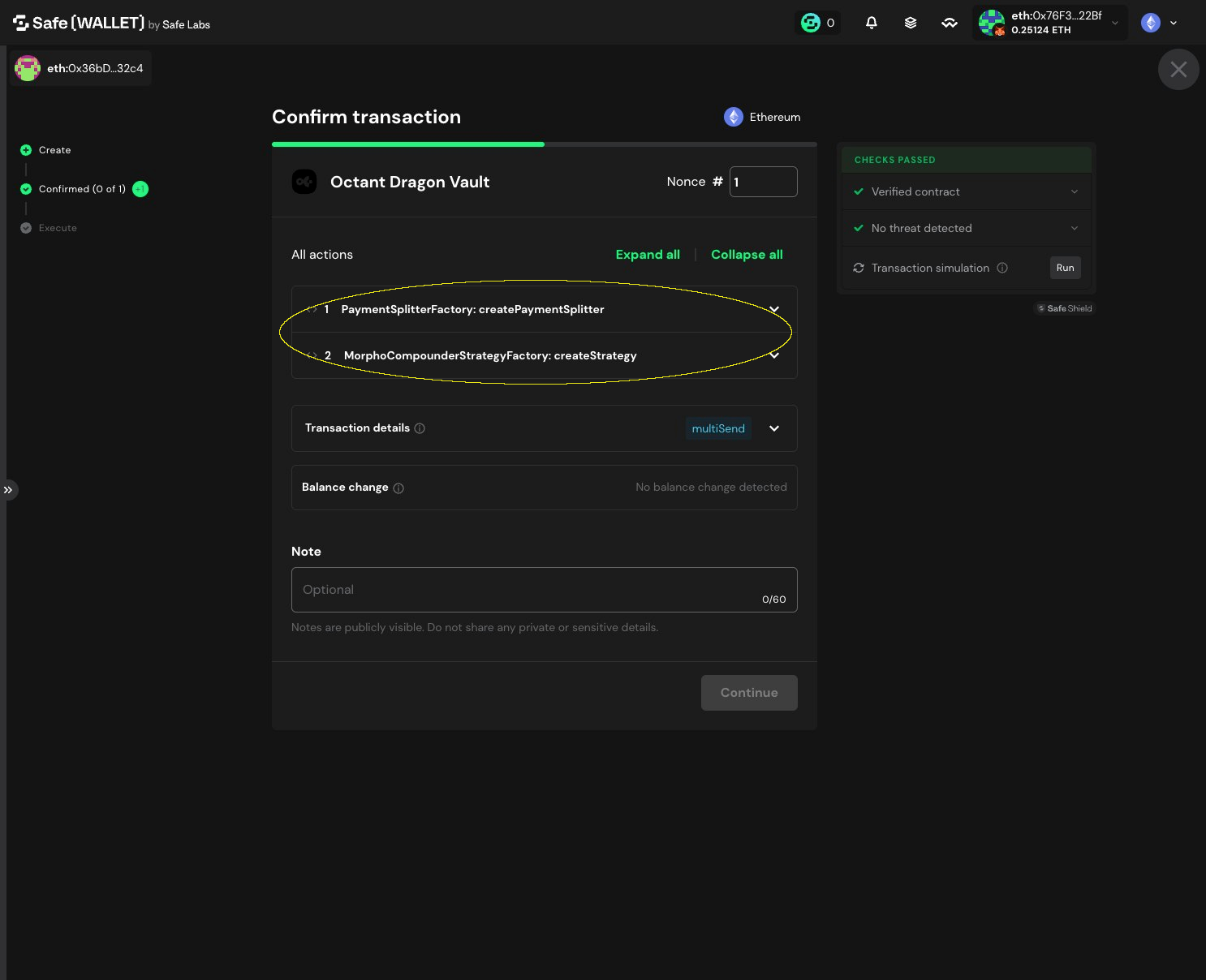
20. Payee call data
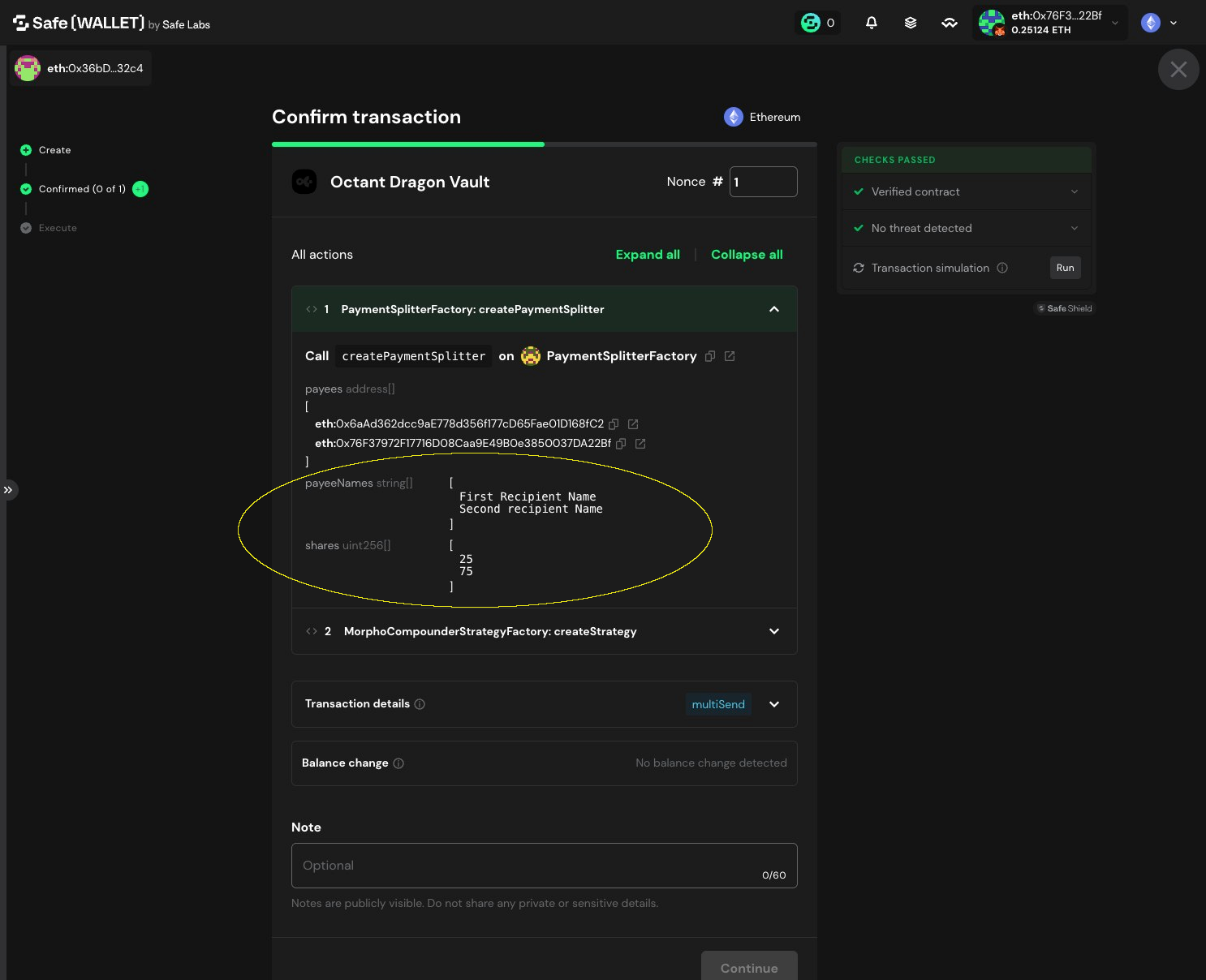
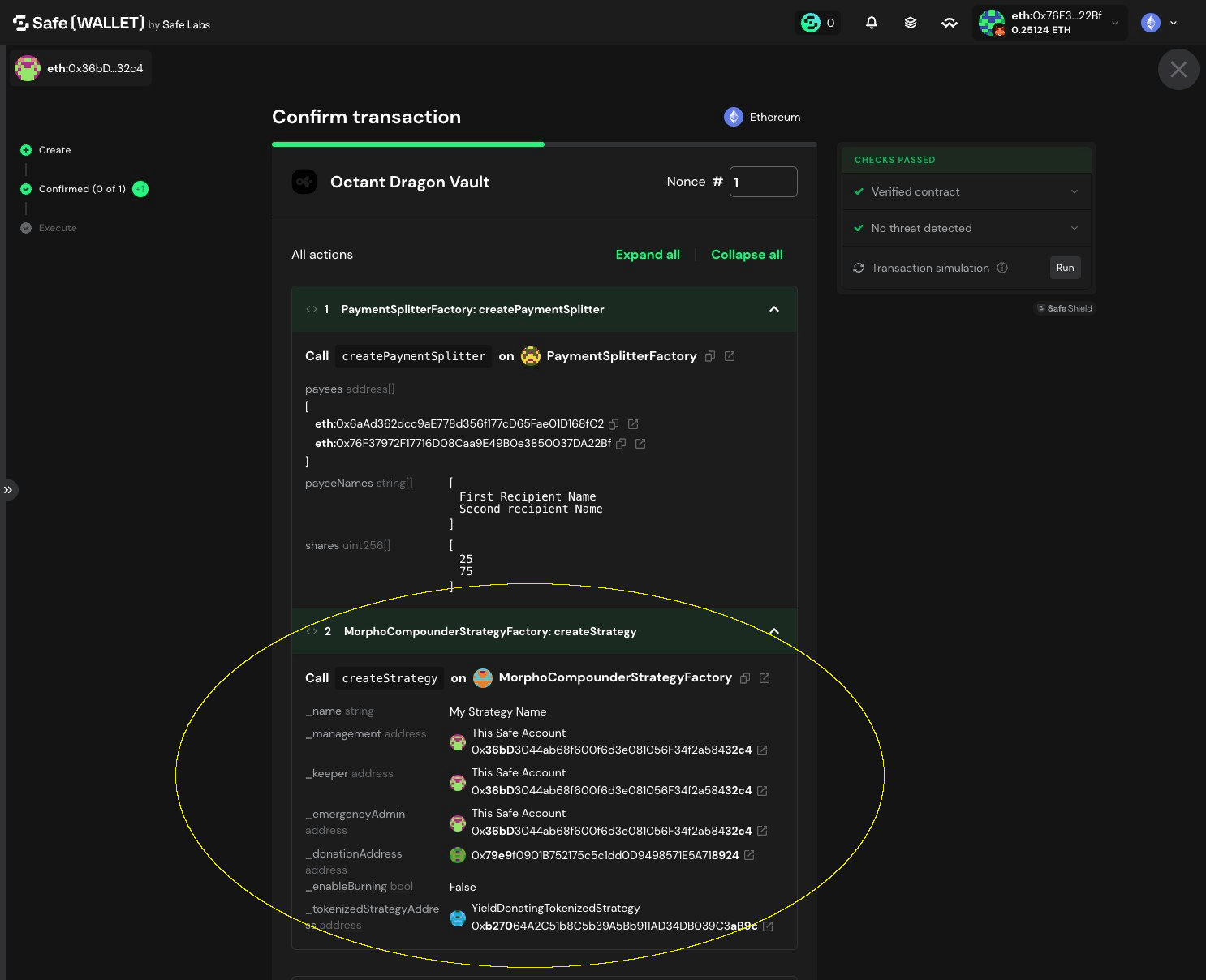
21. Check the second transaction
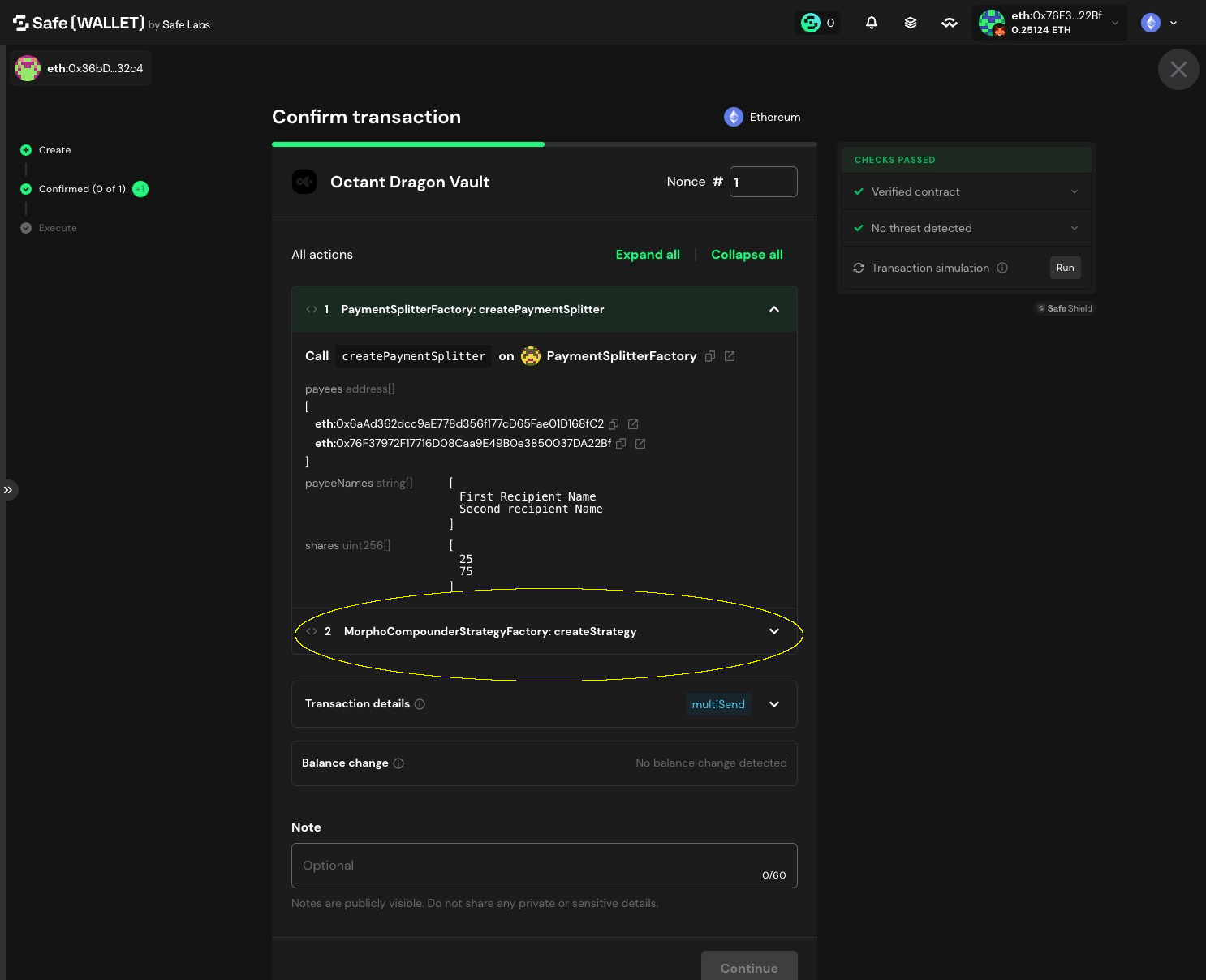
22. Use Safe simulation to confirm strategy config is correct
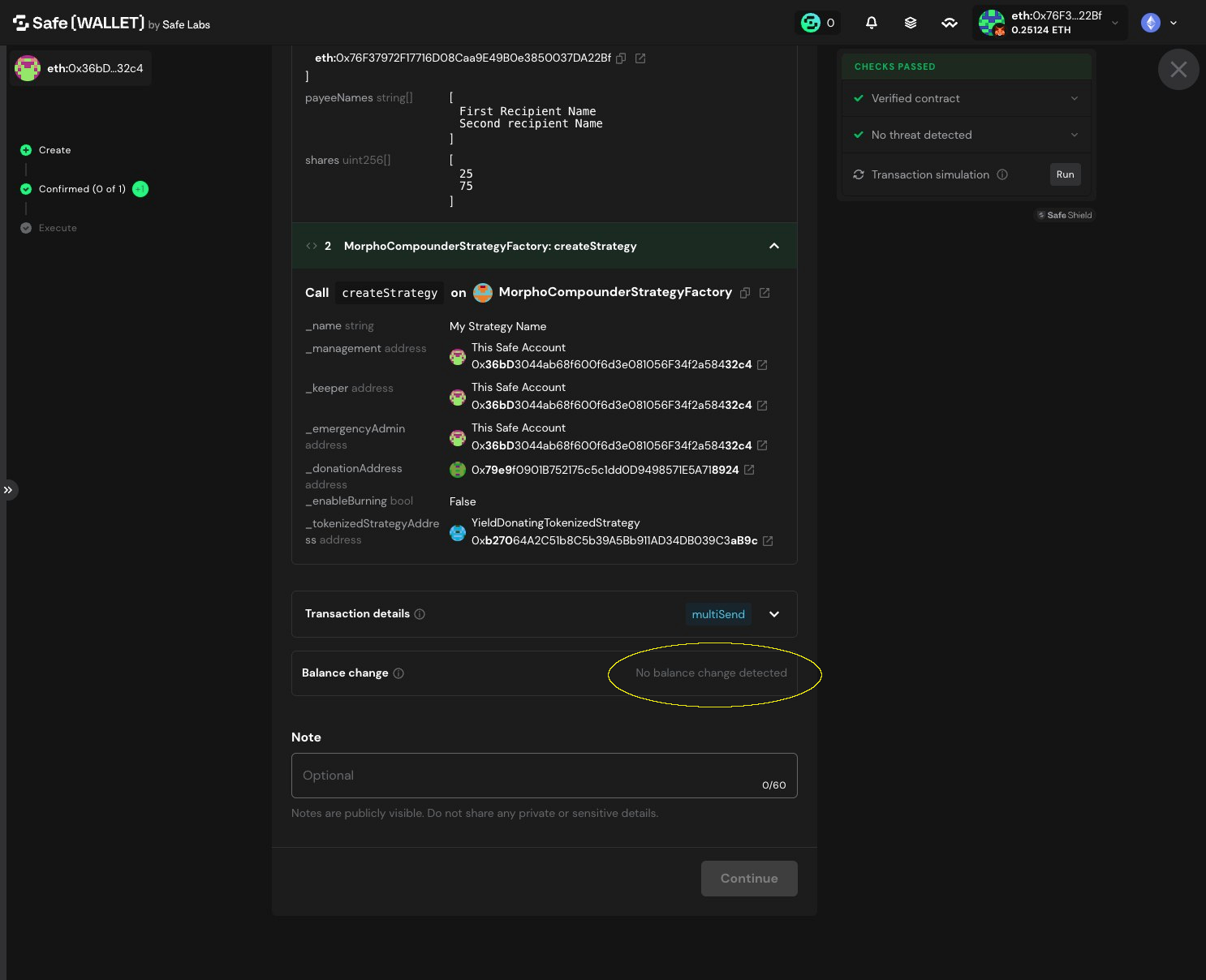
23. Click "No balance change detected"
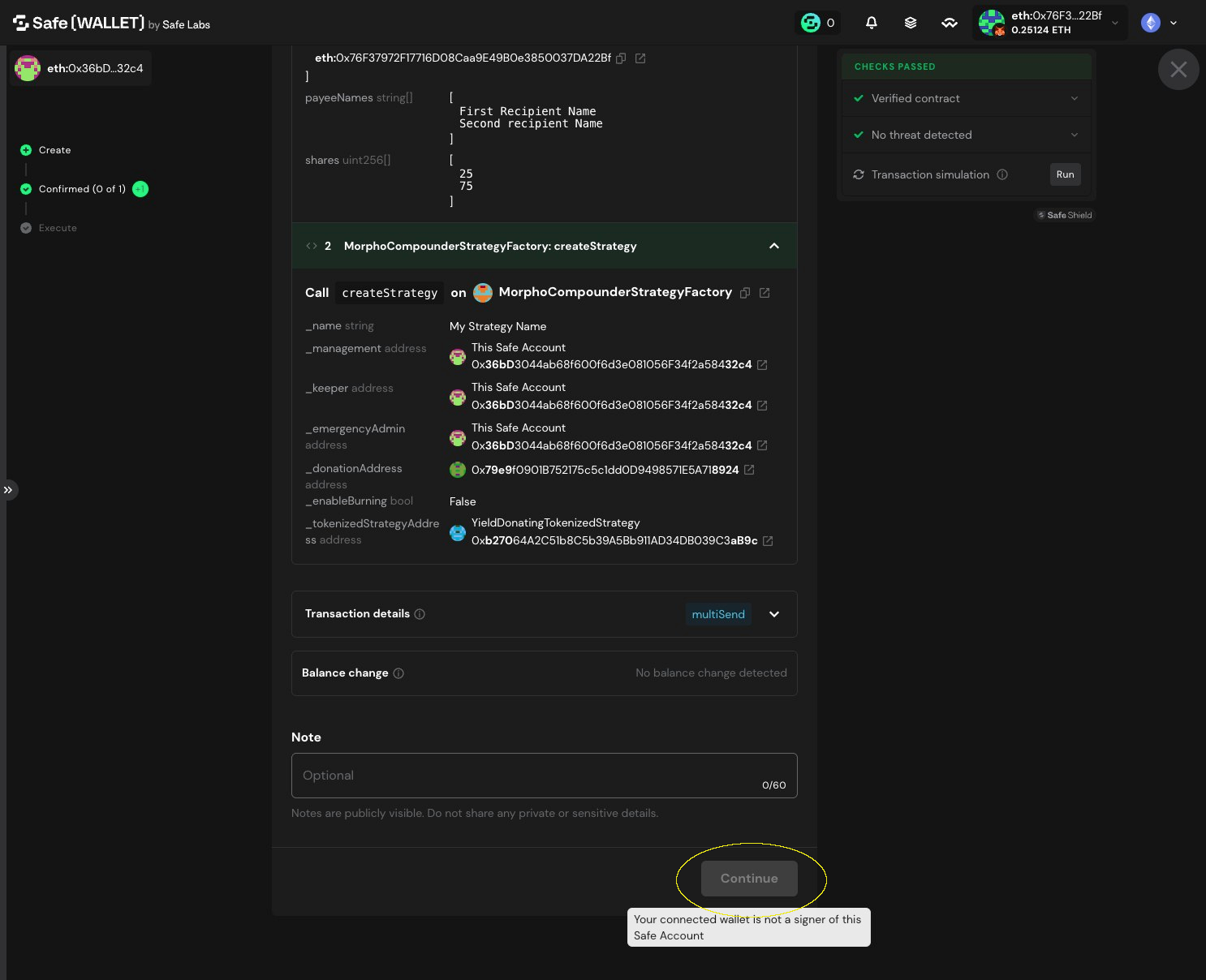
24. Click "Continue" and proceed with Multisig transaction execution flow
- 1. Navigate to Octant Safe app and click "Get Started"
- 2. Click "Morpho Compounder USDC"
- 3. Click "Deploy Strategy"
- 4. In "Strategy Name", enter a label for this deployment (for your reference)
- 5. Click Drop down arrow to define where the strategy's yield is sent
- 6. Choose "New Payment Splitter" to create a new yield split
- 7. Enter a label for the first recipient (e.g., Ops Safe, Core Devs, etc.)
- 8. Paste the recipient wallet, Safe, or contract address
- 9. Click "Add recipient" to add another recipient
- 10. Enter a label for the second recipient (e.g., Ops Safe, Core Devs, etc.)
- 11. Paste the recipient wallet, Safe, or contract address
- 12. Click this range field to set the percentage split...
- 13. or type the percentage directly in the value field
- 14. Click "Save configuration"
- 15. Select the Payment Splitter you just configured
- 16. Click "Deploy Strategy"
- 17. Check your configuration
- 18. Click "Deploy USDC Strategy"
- 19. You can verify the first transaction data in your Safe
- 20. Payee call data
- 21. Check the second transaction
- 22. Use Safe simulation to confirm strategy config is correct
- 23. Click "No balance change detected"
- 24. Click "Continue" and proceed with Multisig transaction execution flow